How to Choose a WordPress Maintenance Provider: 9 Checks

On this page
Want this handled for you?
Get startedHow do you choose a WordPress maintenance provider?
Most providers list the same features. These 9 checks show you how to choose a WordPress maintenance provider by how they actually work.
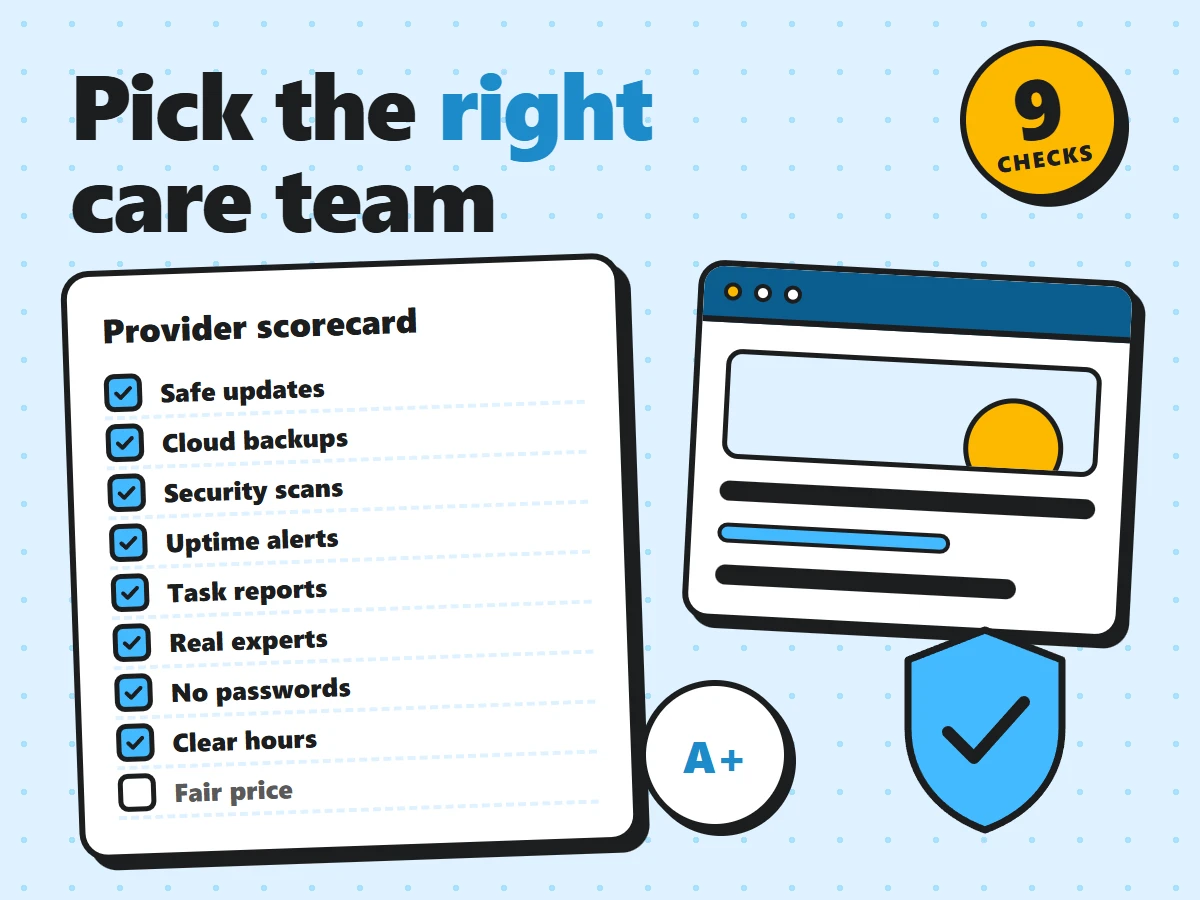
To choose a WordPress maintenance provider, look past the feature list and ask how the work is actually done: how updates are tested, whether backups can really be restored, who does the fixing, and what you’re shown afterwards. Almost every provider lists the same things (updates, backups, security, monitoring), so the list alone tells you little. The nine checks below help you compare providers on what matters, with the questions to ask before you sign up.
In short, a good WordPress maintenance provider:
- takes a backup before every update and checks the site afterwards;
- keeps backups of files and database in the cloud, and has tested a restore;
- acts on security scans and downtime alerts, not just collects them;
- sends a plain-language report for every task;
- connects without asking for your password, and is easy to remove;
- is clear about support hours, response times, price and cancellation.
Why the choice of WordPress maintenance provider matters
A WordPress site is never really finished. WordPress core, your theme and every plugin get regular updates, many of them security fixes. Hosting changes, PHP versions move on, and the site slowly collects broken links, old plugins and growing databases. Someone has to look after all of that, every month.
When you hire a WordPress maintenance provider, you hand that job, and a lot of trust, to an outside team. They’ll have admin access to your site, they’ll press the update buttons, and they’ll be the ones who decide what to do when something breaks at a bad moment. A good provider makes the site boring in the best way: it stays up, stays fast and stays safe. A weak one can leave you worse off than doing nothing, because you assume the work is being done when it isn’t.
That’s why it pays to spend an hour comparing providers properly. Use the checks below as a scorecard and ask each provider the same questions.
How the WordPress maintenance provider handles updates
Updates are the heart of WordPress maintenance and the most common cause of breakage, so this is the first thing to ask about. Clicking “Update all” is easy. Doing it safely is the actual service.
A careful provider will:
- Take a fresh backup right before updating, so a bad update can be rolled back in minutes.
- Read the changelog of major releases before applying them, especially for page builders, WooCommerce and other large plugins.
- Update in a sensible order, usually core first, then the theme, then plugins, and not all at once without looking.
- Check the site afterwards: the home page, key pages, forms and, on a shop, the cart and checkout.
- Hold back an update when it isn’t safe yet, and tell you why.
WordPress can also update itself automatically, and that’s fine for small security releases. For bigger changes, many site owners prefer a human in the loop; our guide on how to disable auto-updates in WordPress explains the options. The official Updating WordPress page is also worth a read so you know what a normal update involves.
Ask: “What do you do before and after each update, and what happens if an update breaks something?”
Backups you can actually restore
Every provider says they back up your site. Fewer can tell you where the backups live, how long they’re kept and how quickly they can bring the site back.
Good answers sound like this:
- Backups cover both the files and the database. One without the other won’t bring a site back.
- They’re stored off the server, in the cloud. If the server fails or the site is hacked, a backup sitting in the same hosting account may be lost with it.
- There’s a clear schedule and retention period, for example daily backups kept for a set number of days, plus a backup before every update.
- They’ve tested restoring and can tell you roughly how long it takes.
The WordPress developer handbook has a good overview of what a full WordPress backup includes, which helps you judge the answers you get.
Ask: “If my site went down today, how would you restore it, and how long would it take?”
Security work, not just a scanner
A security plugin with a weekly scan is a start, but it isn’t security on its own. You want a WordPress maintenance provider that acts on what the scan finds and keeps the basics in place.
- Regular security scans for malware and changed files.
- Fast updates for security releases, since outdated plugins are a common way into WordPress sites.
- Sensible hardening: strong passwords, limited login attempts, no unused admin accounts, and old plugins and themes removed.
- A plan for a hack: who cleans it up, how quickly, and whether that’s included or billed extra.
The official Hardening WordPress guide lists the standard measures. A good provider will know it well. If you want to check your own setup first, our 7 WordPress security tricks cover the essentials.
Ask: “What do you do when a scan finds something, and is malware cleanup included?”
Uptime monitoring that someone watches
Uptime monitoring checks your site every few minutes and raises an alert when it stops responding. The tool is cheap and easy to set up. What you’re paying for is the response.
Find out who gets the alert, and what they do with it. If the alert just lands in an inbox nobody reads at the weekend, you’ll still hear about the outage from a customer first. A good provider looks into the cause, fixes what’s on their side, and talks to your host when the problem is on the server.
Ask: “Who receives the downtime alerts, and what happens next?”
A report for every task
Maintenance is mostly invisible. When it goes well, nothing happens, which makes it hard to know whether anything was done at all. Reports fix that.
Look for a provider that tells you what they did, in plain language: which updates were applied, which were held back and why, backup status, scan results, uptime, and any fixes. A report for every task is better than one vague monthly summary, because you can see the work as it happens and spot problems early.
Ask: “Can I see a sample report?” Then read it. If you can’t understand it, your future reports won’t be any clearer.
Who does the work
Some WordPress maintenance services are mostly software: automated updates, automated scans and an automated email. That can be fine for a simple blog. For a business site or a shop, you want a WordPress expert involved when something goes wrong, because tools can tell you a problem exists but can’t fix a broken checkout.
It’s fair to ask whether the work is done in-house or passed on, whether you get a consistent contact, and what level of WordPress knowledge the team has. You don’t need a big team, but you do need people who work on WordPress every day.
Ask: “Who will actually work on my site, and can I talk to them?”
How they get into your site
To maintain your site, a provider needs access. How they ask for it says a lot about how they treat security.
- Red flag: asking you to email your admin password or hosting login in plain text.
- Better: a separate administrator account just for them, so their access can be removed without changing your own password.
- Best: a connector plugin or another secure method that links your site without you sharing passwords at all, plus a way to switch their access off whenever you like.
Also ask what happens to their access if you leave. You should be able to cut it off completely in one step.
Ask: “How do you connect to my site, and how do I remove your access?”
Support hours and response times
Routine maintenance is only half the job. The other half is help when you need it: a broken layout after a content change, a form that stopped sending, a small edit you don’t have time for.
Plans handle this differently. Some include a set number of support hours each month, some include unlimited “small tasks” with a fuzzy definition, and some bill every request separately. None of these is wrong, but you should know which one you’re buying. Check:
- How many support hours or tasks are included each month.
- What counts as a task, and what’s billed extra.
- How fast they reply, and whether that’s a promise or a hope.
- How you ask for help: a ticket system, email or chat.
Ask: “What happens when I need more help than my plan includes?”
Price and contract terms
Price matters, but compare like with like. A cheap plan that only runs automatic updates isn’t the same service as one where a person checks each update and fixes what breaks. Before you compare numbers, make sure you know what’s included.
- What’s in the base price and what are paid extras (hosting, staging, malware cleanup, speed work).
- Monthly or yearly billing, and whether yearly comes with a discount.
- How to cancel, the notice period, and whether there’s a refund policy.
- What you keep when you leave: your backups, your accounts and full control of your site.
Ask: “If I cancel, what do I get back, and how long does it take?”
Quick comparison: what to look for
| Area | Good sign | Warning sign |
|---|---|---|
| Updates | Backup first, checked by a person, held back when unsafe | Everything updated automatically, never checked |
| Backups | Files and database, stored in the cloud, restore tested | “We have backups” with no details |
| Security | Scans, fast security updates, a plan for a hack | A plugin installed and left alone |
| Monitoring | Alerts go to a person who acts on them | Alerts nobody reads |
| Reports | A clear report for every task | No reports, or pages of jargon |
| Access | Own account or connector, easy to remove | Asks for your password by email |
| Support | Clear hours, clear response times | “Unlimited” with no definition |
| Contract | Clear cancellation and refund terms | Long lock-in, unclear exit |
Should you hire a provider or do it yourself?
You don’t have to hire anyone. If you’re comfortable in WordPress, have a staging site, and can spare an hour or two each month, you can do the updates, backups and checks yourself. Our guide to cloning a WordPress website shows how to build a staging copy for testing.
A WordPress maintenance provider makes more sense when the site earns money or brings in leads, when downtime would hurt, or when your time is better spent on the business. The real cost of doing it yourself isn’t the hours you spend on routine updates. It’s the afternoon you lose when an update breaks the site and you have to work out why.
The bottom line
Most providers list the same features, so judge them on how they work. A good WordPress maintenance provider backs up before every update, checks the site afterwards, keeps restorable backups in the cloud, acts on security scans and downtime alerts, reports every task in plain language, and connects to your site without asking for your password. Ask each provider the nine questions above, read a sample report, and choose the one whose answers are clear and specific.
Frequently asked questions
A WordPress maintenance provider looks after the routine care of your site: updating WordPress core, themes and plugins, taking backups, running security scans, monitoring uptime and fixing problems when they come up. Many also offer support hours for small changes and help with speed or WooCommerce.
Check for updates at least once a week, and apply security releases as soon as possible. Backups should run daily on most business sites, with an extra backup before every update. Uptime monitoring runs all the time, and a fuller review of the site makes sense once a month.
Sometimes. Many hosts offer automatic core updates, backups and basic malware scanning. What they usually don’t do is check your site after a plugin update, fix a broken layout or tell you why something stopped working. Read what your host includes and compare it with the checks above.
Make a list of what your site does (forms, a shop, bookings, memberships), the plugins you can’t live without, and anything that’s broken today. Make sure you have your own admin access and hosting login, so you stay in control whoever maintains the site.
Yes. Our WordPress maintenance services cover updates of core, plugins and themes with a backup first, cloud backups, uptime monitoring, security scans and fixes by a WordPress expert, with a report for every task. You can compare the plans on our pricing page.