How to Build a Survey Website with WordPress

On this page
Want this handled for you?
Get startedHow do you build a survey website with WordPress?
A step-by-step guide to building a survey website with WordPress, from planning good questions to consent, sharing the survey and exporting results to CSV.
To build a survey website with WordPress, you plan your questions first, set up WordPress on decent hosting, add a form or survey plugin, build the survey with the right question types and logic, then share it and export the answers to a spreadsheet. That’s the whole job in one sentence. The rest of this guide walks through each step, including the parts people often skip, like consent, data storage and keeping spam out.
Why WordPress works well for a survey website
Hosted survey tools are quick to start with, but your questions and your answers live on someone else’s platform, under their branding and their limits. A survey website on WordPress puts everything on a site you own. You choose where the data is stored, how long you keep it, what the pages look like and who can see the results.
It also grows with you. One customer feedback form today can become a set of surveys, a results page, a members-only research area or a newsletter sign-up tomorrow, all on the same site. And there’s a wide choice of form and survey plugins, so you aren’t locked into one vendor.
The trade-off is that you look after the site yourself: updates, backups and security. We cover that in the last step.
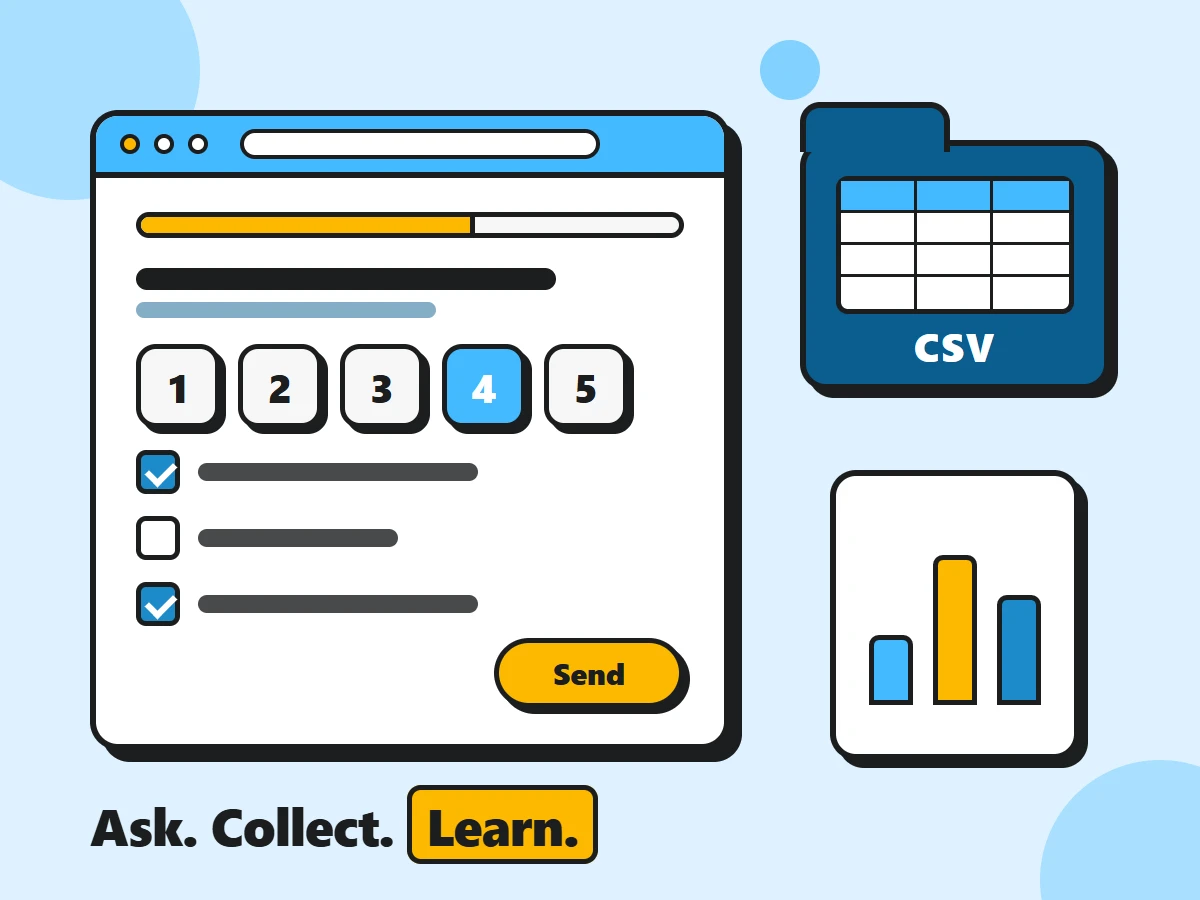
Plan your survey before you build anything
Most weak surveys fail before a single field is added. Twenty minutes on paper makes the build easy.
Start with one clear goal
Write down the decision the survey will help you make. “Find out why trial users don’t upgrade” is a goal. “Learn about our customers” isn’t. Every question should earn its place by feeding that decision. If you can’t say what you’d do differently with the answer, cut the question.
Decide who you’re asking
Customers, website visitors, staff, event guests or the general public? The audience changes how you reach them, how formal the wording should be and whether you need to know who answered. Anonymous surveys usually get more honest answers; named surveys let you follow up.
Pick the right question types
Each question type suits a different job.
| Question type | Best for | Watch out for |
|---|---|---|
| Multiple choice (one answer) | Clear categories, like age band or plan type | Options that overlap or miss a common answer |
| Checkboxes (several answers) | “Which of these do you use?” | Long lists people skim rather than read |
| Rating scale (1–5 or agree/disagree) | Satisfaction and opinions you want to compare | Changing the scale direction between questions |
| Dropdown | Long fixed lists, like countries | Hiding short lists that would be faster as buttons |
| Short text | Names, one-word answers, “Other (please say)” | Answers spelt ten different ways |
| Long text (open question) | The “why” behind a rating | Too many of them: they’re slow to answer and analyse |
Keep it short
Every extra question costs you respondents. Aim for something people can finish in a few minutes, and tell them the honest time up front. If your list keeps growing, split it into a short core survey and an optional follow-up.
Set up hosting and WordPress
A survey website doesn’t need heavy hosting, but it does need reliable hosting. A form that times out on submit loses the answer and annoys the person who just spent five minutes on it.
When you choose a host, look for:
- A current PHP version (PHP 8.x) and an up-to-date database server
- Free SSL you can switch on from the control panel, so every page loads over
https:// - Automatic backups you can restore yourself
- Working email delivery, or support for an SMTP service, so notification emails actually arrive
- A one-click WordPress installer, which most hosts offer
Once WordPress is installed, do the basics before adding any survey:
- Under Settings → General, set the site title and check both addresses start with
https://. - Under Settings → Permalinks, choose “Post name”, so your survey gets a clean address like
/customer-survey/. - Pick a lightweight theme that looks good on phones, because many people will answer on one.
- If the site is still being built, tick “Discourage search engines from indexing this site” under Settings → Reading, and untick it when you go live.
Already have a WordPress site? You don’t need a second one. A survey can live on a single page of the site you already run.
Choose a form or survey plugin
WordPress doesn’t include a survey builder, so a plugin does the heavy lifting. There are two broad kinds:
- Form builders with survey features, such as WPForms, Formidable Forms, Forminator and Gravity Forms. You build the survey like any other form, and survey-style fields, reports or polls come either built in or through an add-on.
- Dedicated survey and quiz plugins, such as Quiz and Survey Master, which are designed around question pages and results from the start.
Several of these have a free version on WordPress.org, while others are premium only, and survey features in particular are often part of a paid tier. Plans and limits change, so check each plugin’s current page rather than relying on a review. You can browse options in the WordPress.org plugin directory under the “survey” tag.
Whichever you look at, compare them on the things that matter for a survey website:
- Field types: does it have rating scales, matrix or Likert grids and “Other” options?
- Conditional logic: can it show or skip questions based on earlier answers?
- Multi-step forms with a progress bar
- Entry storage: are answers saved in your WordPress database, or only emailed to you?
- CSV export of entries
- Spam protection: honeypot, CAPTCHA or similar
- Accessibility: proper labels, keyboard use and clear error messages
- Updates and support: is it actively maintained and tested with your WordPress version?
Install one plugin and stick with it. Two form plugins on the same site add weight and can clash.
Build the survey form
With your question list ready, building the form is mostly drag and drop. A few features make the difference between a survey people finish and one they abandon.
Use conditional logic
Conditional logic shows or hides questions based on earlier answers. If someone says they’ve never used your product, skip the five questions about how they use it. Everyone gets a shorter survey and you get cleaner data, because nobody guesses at questions that don’t apply to them.
Split long surveys into steps
A multi-step form shows a few questions per page with a progress bar. It feels shorter than one long scroll, and it lets you group related questions. Keep the steps balanced, put the easiest questions first and leave personal details, if you need them, until the end.
Be careful with required fields
Mark a question as required only if the survey is useless without it. Forcing people to answer something they don’t want to answer usually gets you a random click or a closed tab. When a field is required, say so clearly in the label, not only with a colour or an asterisk.
Write for people and screen readers
Every field needs a visible label, error messages should say what to fix, and the form should work with a keyboard alone. The free Learn Forms course on web.dev is a clear guide to accessible, usable forms.
Finish with a proper thank-you
Set a confirmation message or a thank-you page that says the answers were received and what happens next. Then place the form on a page, usually with the plugin’s block or shortcode, and test it on a phone before anyone else sees it.
Handle privacy, consent and data storage
A survey collects personal data the moment it asks for a name, an email address or even details that could identify someone together. If you have respondents in the UK or EU, data protection law such as the GDPR applies. This isn’t legal advice, but these habits cover the basics:
- Collect only what you need. If the survey can be anonymous, make it anonymous. Don’t ask for an email “just in case”.
- Explain why and how. Say in a sentence at the top what the survey is for, who sees the answers and how long you keep them, and link to your privacy policy.
- Ask for consent clearly. If you want to contact people later or add them to a mailing list, use a separate, unticked checkbox. Don’t bundle it with submitting the survey.
- Decide where answers are stored. Most form plugins save entries in your WordPress database and may also email them. Emails sit in inboxes for years, so keep notification emails short or switch them off.
- Delete old data. Set a retention period, and use your plugin’s option to delete entries automatically if it has one.
WordPress helps here too. Under Settings → Privacy you can create or choose a privacy policy page; the Privacy Settings documentation explains how it works. Tools → Export Personal Data and Tools → Erase Personal Data handle requests from people who ask for a copy of their data or its removal, as long as your form plugin supports these tools.
Share your survey
A survey nobody sees gets no answers. Give it its own page with a short, readable address, then put that link where your audience already is:
- Email: a short message to customers or members, with one clear button
- On your site: a banner, a link after checkout or a note on the thank-you page of another form
- Social media and newsletters, with a one-line reason to take part
- Printed QR codes at events, in shops or on receipts, pointing to the survey page
If the survey is only for a closed group, set the page’s visibility to Password protected in the editor’s post settings and share the password with that group. For internal surveys, you can also keep the page out of search results with your SEO plugin’s “noindex” setting.
Tell people how long it takes and what you’ll do with the results. That gets more replies than a bare link.
Collect and export results
Once answers start coming in, you’ll usually find them under your form plugin’s Entries screen in the WordPress dashboard. Some plugins also show simple charts of the results there.
For real analysis, export the entries as a CSV file. Almost every form plugin offers this, and the file opens in Excel, Google Sheets, Numbers or LibreOffice. From there you can:
- Count answers to each question with a pivot table
- Filter by group, like new versus long-time customers
- Read open answers side by side and tag common themes
Two habits keep your data safe. First, treat the CSV as personal data: store it in a protected place, not in a shared download folder, and delete copies you no longer need. Second, if a spreadsheet warns that a file contains formulas or links when you open an export, don’t enable them: survey answers come from the public, and a cell starting with = could be someone’s attempt at mischief.
Good survey design: avoid bias and leading questions
The way you ask decides the answer you get. A beautiful survey website with biased questions gives you confident, wrong conclusions. Watch for these traps:
- Leading questions. “How much did you enjoy our new checkout?” assumes they enjoyed it. Ask “How easy or difficult was the new checkout?” instead.
- Double-barrelled questions. “Was the service fast and friendly?” asks two things at once. Split it.
- Unbalanced scales. A scale of “Good, Very good, Excellent” has no room for “Poor”. Give equal options on both sides, with a neutral middle if it makes sense.
- Missing options. Add “Other”, “Not sure” or “Doesn’t apply” where people genuinely might need them, so nobody is forced into a false answer.
- Order effects. Earlier questions can colour later ones. Ask general questions before specific ones, and let your plugin shuffle answer options if it can.
Before you launch, ask three or four people to take the survey while you watch or while they talk you through it. Any question they hesitate over or read twice needs rewording.
Keep your survey website fast and secure
Speed matters because a slow page loses respondents before the first question. Security matters because a survey website holds other people’s data.
Speed
- Use a caching plugin or your host’s cache, but check your form plugin’s advice on caching. Forms often include a security token, and a page cached for too long can make submissions fail. Excluding the survey page from the page cache is a common fix.
- Compress images and keep the survey page simple: no sliders or heavy page-builder sections around the form.
- Avoid loading form scripts on every page if your plugin lets you limit them to pages that contain a form.
If you change cache settings, our guide on how to clear the WordPress cache shows how to see your changes straight away.
Security
- Keep WordPress, your theme and the form plugin updated. Form plugins handle user input, so their security updates matter.
- Turn on spam protection, such as a honeypot or CAPTCHA, before you share the link.
- Give each person who reviews results their own account with the lowest role they need.
- Take regular backups that include the database, because that’s where your entries live.
WordPress.org’s guide to hardening WordPress goes deeper if you want the full picture.
The bottom line
A good survey website is mostly good planning: one goal, the right questions, and nothing that wastes your respondents’ time. WordPress and a solid form plugin handle the rest, from conditional logic to CSV exports, on a site you control. Look after privacy from the first draft, test with a few real people, and keep the site updated and backed up while the answers come in. If you’d rather not handle that upkeep, our WordPress security service can keep things safe while you focus on the results.
Frequently asked questions
You can get started without paying for software: WordPress is free, and several form and survey plugins have a free version on WordPress.org. You’ll still need a domain and hosting, and advanced survey features are often part of a plugin’s paid tier.
No. A survey can live on a single page of your existing WordPress site. A separate survey website only makes sense if you run lots of surveys or want them kept apart from your main brand.
That depends on your plugin. Most form plugins save entries in your WordPress database and can also email them to you. Check this before you launch, because some setups only send emails and keep no copy on the site.
Switch on your form plugin’s spam protection, usually a honeypot field, a CAPTCHA or both, before you share the link. Keeping WordPress and the plugin updated closes the holes bots look for.
Yes. Our care plans cover WordPress core, plugin and theme updates, cloud backups, uptime monitoring and security scans, with a report for every task and fixes done by a WordPress expert. See the plans.